Monkedo
Monkedo — це інтуїтивно зрозуміла no-code платформа автоматизації, створена як для технічно підкованих, так і для нетехнічних користувачів. Її зручний інтерфейс дозволяє будь-кому розробляти власні робочі процеси за допомогою простих дій перетягування — без написання жодного рядка коду. Незалежно від того, чи хочете ви автоматизувати щоденні завдання, оптимізувати бізнес-операції або керувати скла
Monkedo — це потужна no-code платформа автоматизації, створена для усунення повторюваних завдань, зменшення ручного навантаження та мінімізації людських помилок. Отже, як це працює?
Автоматизація перетягуванням із понад 400 застосунками
Monkedo пропонує тисячі готових компонентів та інтеграцій із понад 400 популярними застосунками. Ви можете легко створювати автоматизації, перетягуючи компоненти на візуальний редактор і з’єднуючи їх — без жодного коду.Дані із застосунків та вебсайтів
Monkedo не просто інтегрує застосунки. За допомогою нашого розширення для браузера Chrome ви можете збирати дані безпосередньо з вебсайтів і використовувати їх у своїх автоматизаціях — ідеально для генерації лідів, моніторингу чи сценаріїв використання даних у реальному часі.Зберігайте та повторно використовуйте дані
Використовуйте Value Stores та Data Tables у Monkedo, щоб зберігати інформацію та динамічно використовувати її в різних робочих процесах. Це робить вашу автоматизацію розумнішою та гнучкішою.Розширена логіка потоків
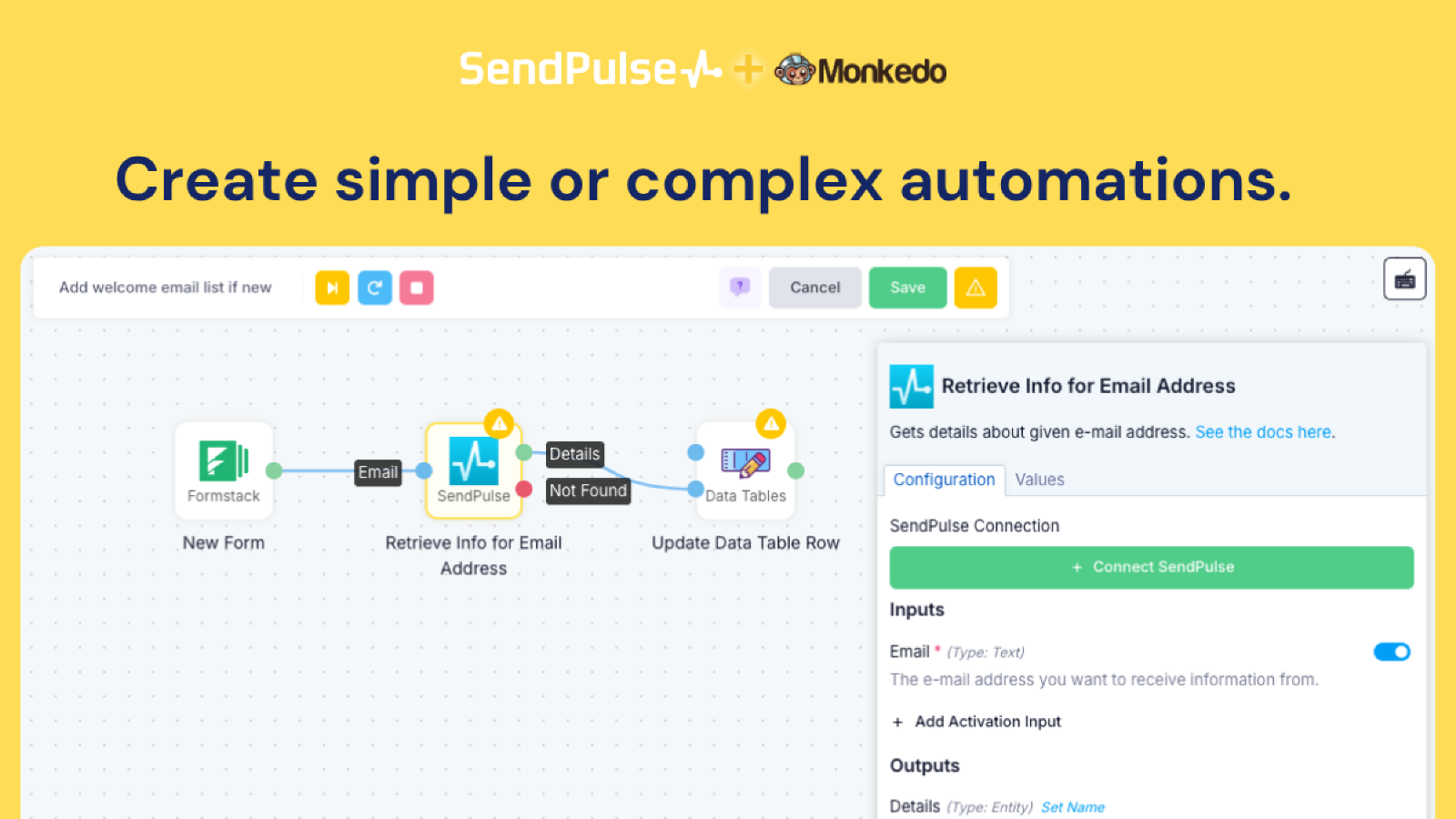
Monkedo виходить за межі лінійних робочих процесів. Ви можете створювати складні автоматизації з гілками, циклами, умовами та навіть рекурсивними структурами — що дає вам гнучкість візуально будувати складну логіку.Інтеграція рівня iPaaS для розробників
У режимі розробника Monkedo працює як платформа інтеграції як послуга (iPaaS). Ви можете підключати власне програмне забезпечення до інструментів на кшталт SendPulse і розгортати інтеграції, не показуючи Monkedo вашим кінцевим користувачам. Ваші клієнти отримують бездоганну функціональність — ніколи не бачачи інтерфейс Monkedo.
Увійдіть у свій обліковий запис Monkedo.
Перейдіть на сторінку Automation і натисніть кнопку Create Automation.
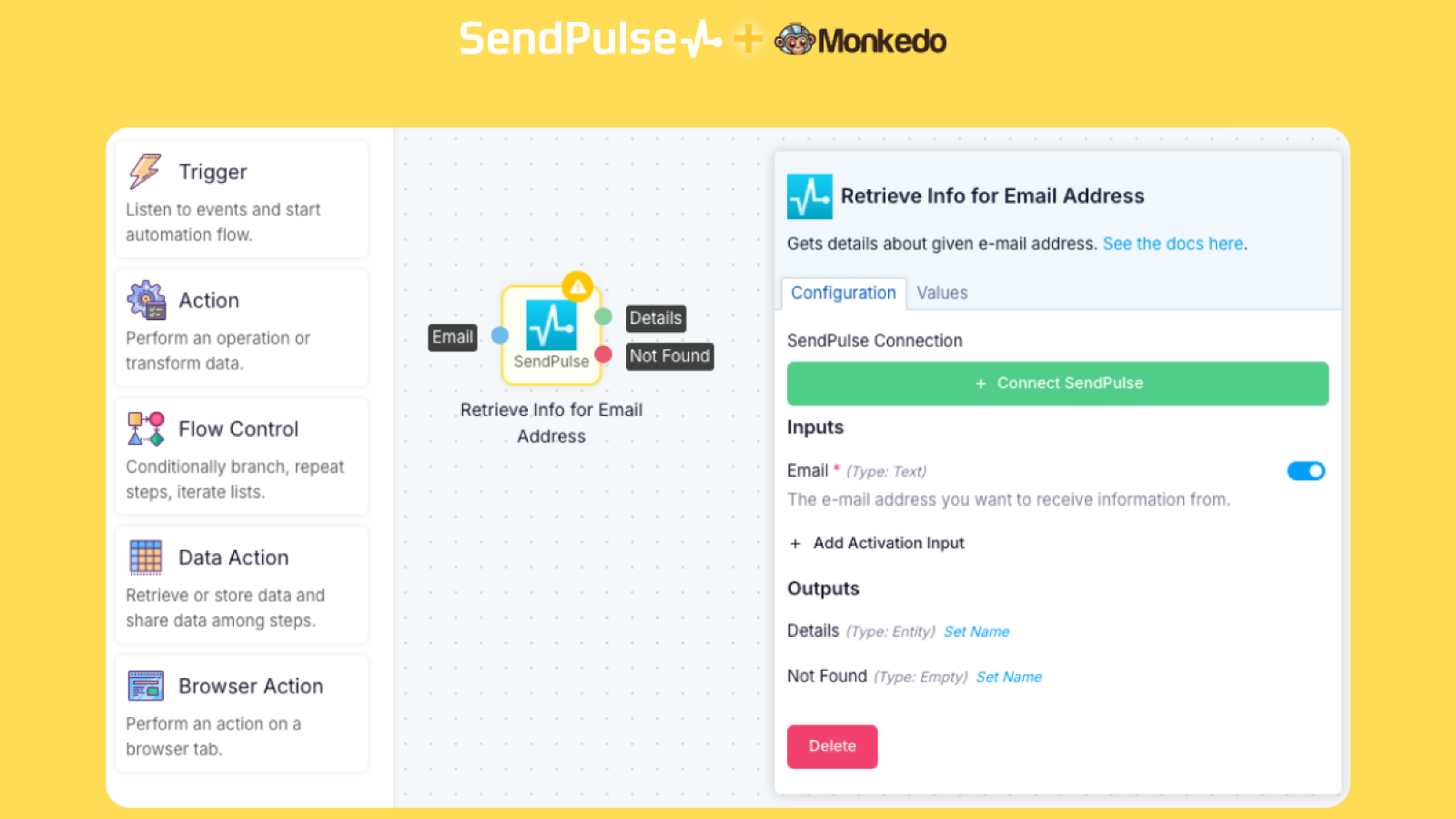
На лівій панелі ви побачите категорії компонентів: Triggers, Actions, Flow Control, Data Action, та Browser Action.
Натисніть Actions і скористайтеся рядком пошуку, щоб знайти Sendpulse.
Перетягніть обраний компонент дії в область редактора.
Натисніть на компонент, щоб відкрити інформаційну панель праворуч.
Натисніть кнопку Connect і виконайте кроки для авторизації доступу до Sendpulse.
Усе готово! Тепер ви можете почати створювати свою автоматизацію. Щоб налаштувати автоматизацію, почніть із введення необхідних значень у кожен компонент. Потім додайте в редактор інші компоненти застосунків за потреби. З’єднайте вихід одного компонента з входом іншого, щоб встановити чіткий потік даних між кроками. Потрібна допомога? Перегляньте це коротке навчальне відео.





або